Blur the share, not your screen
You need to log in, and forty people are watching. Hit one key: your viewers see a blur, your own screen stays perfectly readable, and the share never stops. No pausing, no dropping out and rejoining, no scrambling.
On the default setting the blur is tuned to destroy text while leaving the layout intact, so your audience can still follow a sign-in flow — they see the fields, the button and where you are clicking, just nothing readable. Turn it up when you want nothing legible at all.
While it's on, your frame turns orange and says so. Only you see that warning; to your viewers it is simply a blur.
Draw on what you're sharing
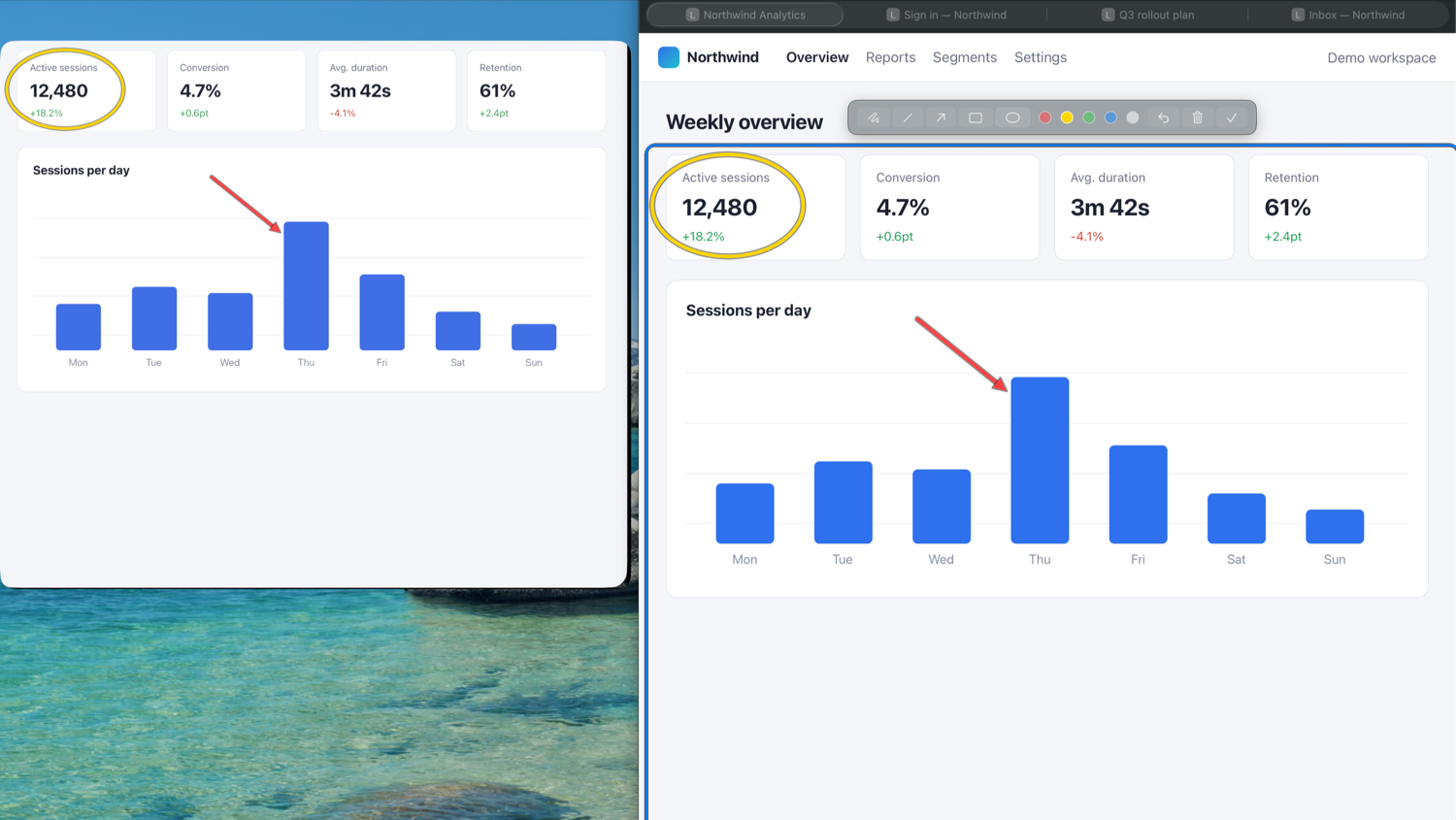
Press ⌃⌥⌘D and mark up the region directly. Your viewers watch every stroke as you make it. Marks stay on screen when you drop back out to keep working, and follow the frame when you move or resize it.
- FreehandP
- LineL
- ArrowA
- RectangleR
- EllipseO
Five colours, ⌘Z to undo, and ⌃⌥⌘E to erase every mark from anywhere — for when you have moved on and old arrows are still sitting on your viewers' screen. Undo brings them back if you didn't mean it.
Overlay it, or park it on a second display
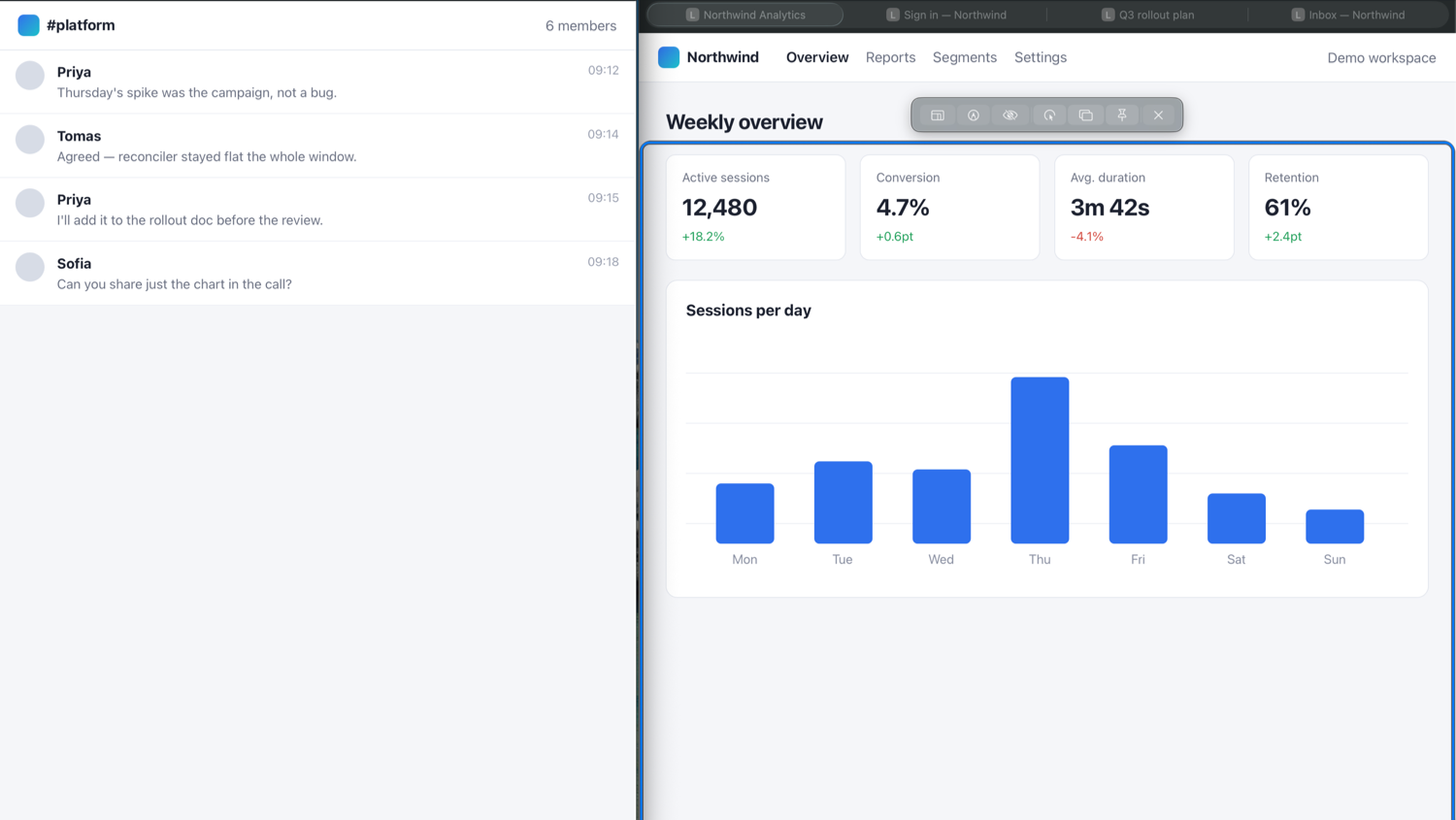
Overlay puts the frame directly on the region it mirrors. What you drag is exactly what your audience gets, and your clicks pass straight through to the app underneath — nothing is in your way. Best on a single screen.
Detached preview turns the frame into a see-through outline and moves the shared window somewhere else entirely, including a second display. The region itself stays completely unobstructed, and you get a live view of exactly what your viewers are seeing while you work.
Switch between them mid-call. Your meeting share never notices.
Everything else
-
One region, not everything
Notifications, other tabs, your messages and your desktop clutter stay private.
-
Clicks pass through
The frame sits on top, but you work straight through it as though it weren't there.
-
Snap onto any window
Pick a window from a list and the frame jumps to fit it. No lining anything up by hand.
-
Locked aspect ratios
16:9, 16:10, 4:3, 1:1, or exact 720p and 1080p sizes — so nothing gets letterboxed.
-
Shortcuts for everything
Blur, drawing and clearing work from any app. Rebind them however you like.
-
Stays out of the way
Lives in the menu bar, remembers your position and settings, and never takes a Dock slot.
Built for the apps that can't do this
Teams, Slack huddles and Google Meet have no way to share part of your screen — it's your whole display, or one rigid window. ShareFrame adds region sharing to any of them.
It works anywhere you can share a single window:
- Zoom
- Microsoft Teams
- Slack
- Google Meet
- Webex
- Discord
- OBS
- QuickTime
Shortcuts
- Blur the share for viewers ⌃⌥⌘B
- Drawing mode on or off ⌃⌥⌘D
- Erase every mark ⌃⌥⌘E
- Undo a mark, while drawing ⌘Z
- Pick a tool, while drawing P L A R O
All of them rebindable in Settings.
Private by design
ShareFrame captures your screen locally and draws it on your own machine. Nothing is uploaded, nothing is recorded, and the app makes no network connections at all. There is no account, no telemetry and no analytics.
Requirements
- macOS 14 or later
- Screen Recording permission, granted on first launch
- Any meeting or recording app that can share a window
Coming to the Mac App Store
$9.99 · one-time purchase · no subscription
Email me when it's out